The Blueprint Panel shows the hierarchical structure of your current blueprint and provides controls for modifying the Viewer layout.
For a complete understanding of blueprints, see Blueprints.

Panel header controls
Add view or container
The "+" button adds a new view or container to the viewport.
Reset button
The reset button discards all changes made to the current blueprint.
The current blueprint goes back to the blueprint it started from, such as a blueprint sent with rr.send_blueprint(), a loaded .rbl file, or a blueprint registered on a catalog dataset.
A blueprint from a catalog server goes back to how it was when the Viewer loaded it, and is not loaded from the server again.
If the current blueprint did not start from another blueprint, as with a heuristic blueprint, the Viewer generates a new one from your data.
Reset to default blueprint and Reset to heuristic blueprint are in the View menu and the command palette. See Reset behavior for how the resets differ.
Dataset blueprints
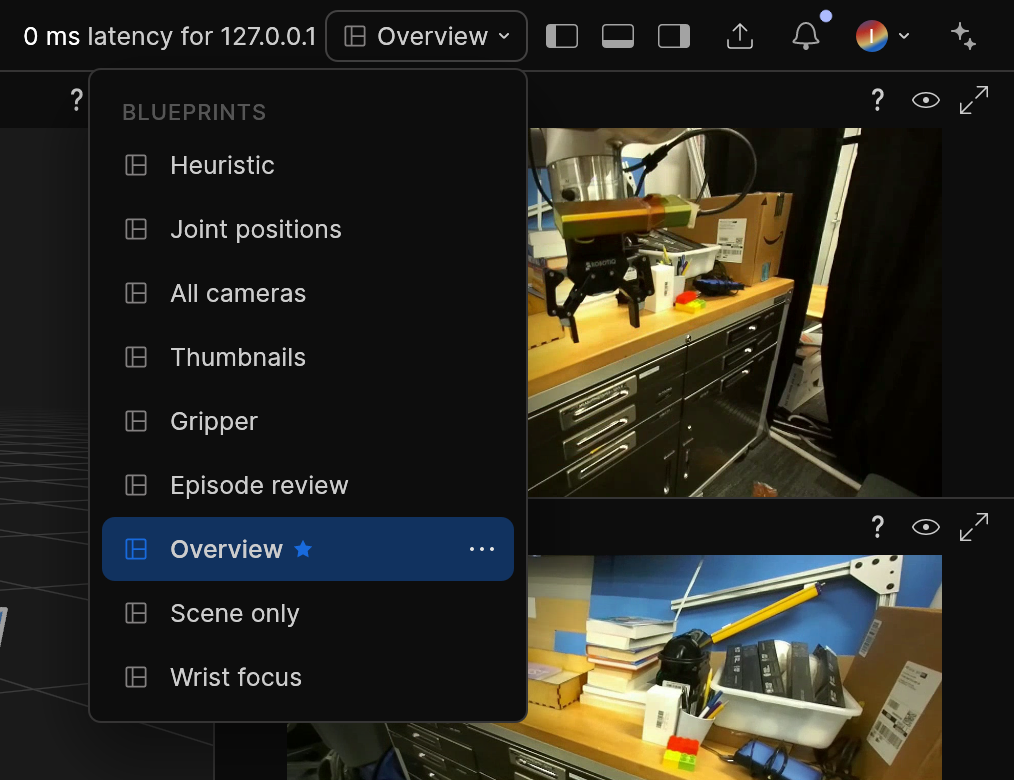
For a recording opened from a catalog dataset, there's a dropdown in the top bar to switch between the blueprints registered for that dataset. The default blueprint is marked with a star.
The dropdown also has Heuristic to switch to the automatic heuristic blueprint.
A blueprint without a name property is listed as <unnamed>.
In the list, the "…" button of the current blueprint has Export .rbl…, which saves the blueprint to a file, and Revert changes, which reverts local changes to the blueprint.
See Blueprints for how to register blueprints on a dataset.
Blueprint tree
The blueprint panel displays a tree view showing:
- The viewport (root container)
- Nested containers (Horizontal, Vertical, Grid, Tabs)
- Views within containers
- Entities displayed in each view
Interaction
Hovering over any item reveals controls for:
- Eye icon: Show or hide the item
- "-" button: Remove the item from the blueprint
Right-click any item for a context menu with additional operations.
Entity settings per view
Each entity in the blueprint panel carries its own per-view settings, such as visualizers and component overrides. Changes made here apply only to the view where the entity appears.
Groups
When entities are added to a view (manually or automatically), hierarchical groupings are created based on Entity Paths. These groups help organize large views and enable hierarchical manipulation of blueprints. Groups are independent of logged data and exist purely for blueprint organization.
Adding entities to views
To add or re-add an entity to a view:
- Select the target view in the blueprint panel
- Click the button in the Selection Panel to open the entity picker
- Select entities to add (only compatible entities for that view class are shown)
See Entity path filter for information on how view content is determined.