What are Blueprints?
A blueprint describes how the Viewer lays out and displays your data. This page covers what blueprints control, how they bind to recordings, and the ways to create and change them.
For a video overview, check out the Blueprints video on YouTube.
A way to think about the Rerun Viewer is that
- The recording provides the actual data you are visualizing
- The blueprint determines how that data is displayed
When you do not load a blueprint, the Viewer creates one automatically.
What blueprints control
Blueprints control the Viewer's layout and configuration:
- Panel visibility: Whether panels like the blueprint panel, selection panel, and time panel are expanded or collapsed
- Layout structure: How views are arranged using containers (Grid, Horizontal, Vertical, Tabs)
- View classes and configuration: What kind of views display your data (2D/3D spatial, maps, charts, text logs, etc.) and their specific settings
- Visual properties: Styling like backgrounds, colors, zoom levels, time ranges, and visual bounds
In general, if you can modify an aspect of how something looks through the Viewer, you are actually modifying the blueprint.
Application IDs: binding blueprints to data
The Application ID is how blueprints connect to your data:
All recordings that share the same Application ID will use the same blueprint.
This loose coupling between blueprints and recordings means:
- You can keep the blueprint constant while changing the recording to compare different datasets with consistent views
- You can change the blueprint while keeping a recording constant to view the same data in different ways
- When you save blueprint changes with the Viewer, those changes apply to all recordings with that Application ID
Think of the Application ID as the "key" that binds a blueprint to a specific type of recording. If you want recordings to share the same layout, give them the same Application ID.
Blueprints of a catalog dataset
A catalog dataset can have several blueprints registered for its recordings, and one of them can be the dataset's default. See Blueprints for how to register them. A recording opened from the dataset starts with the dataset's default blueprint, if it has one. The blueprint dropdown in the top bar switches between the dataset's blueprints and a heuristic blueprint.
Reset behavior
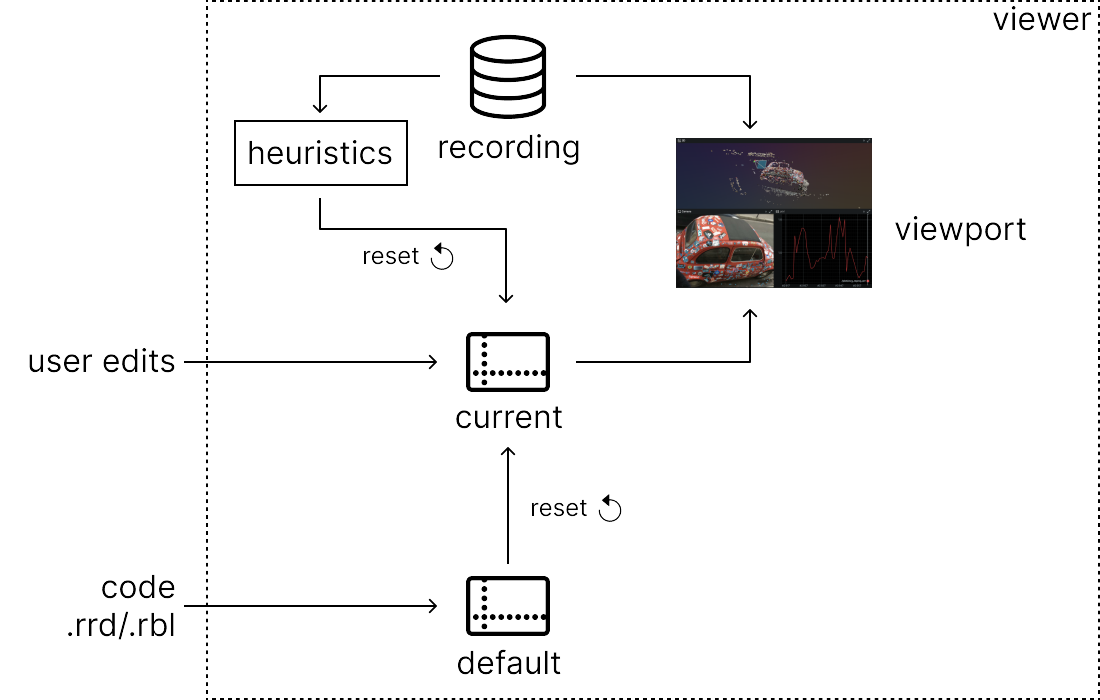
The reset button in the blueprint panel discards all changes made to the current blueprint. The View menu and the command palette have two more resets.
Reset to heuristic blueprint
This generates a new blueprint automatically based on your current data. The Viewer analyzes what you've logged and creates an appropriate layout using built-in heuristics. This is useful when you want to start over and let Rerun figure out a reasonable layout.
Reset to default blueprint
This returns to your programmatically specified blueprint (sent from code) or a saved blueprint file (.rbl).
If you've sent a blueprint using rr.send_blueprint() or loaded a .rbl file, this becomes your "default."
For a recording opened from a catalog dataset, the default is the dataset's default blueprint.
When no default blueprint has been set, this uses the heuristic blueprint instead.
Three ways to work with blueprints
There are three complementary approaches to creating and modifying blueprints:
1. Interactively
Modify blueprints directly in the Viewer UI:
- Drag and drop views to rearrange them
- Add new views or containers with the "+" button
- Split views horizontally, vertically, or into grids
- Change container types (Grid, Horizontal, Vertical, Tabs)
- Rename views and containers
- Show, hide, or remove elements
This is the fastest way to experiment with layouts. See Blueprint Panel Reference for the available controls.
2. Save and load files
Save your blueprint configuration to .rbl files:
- Use "Save blueprint…" from the file menu to save your current layout
- Load blueprints with "Open file…" or by dragging
.rblfiles into the Viewer - Share blueprint files with teammates to ensure everyone sees data the same way
- Reuse blueprints across sessions and different recordings (with the same Application ID)
Blueprint files are portable and can be version-controlled alongside your code.
3. Programmatically
Write blueprint code that configures the Viewer automatically:
- Define layouts in Python using
rerun.blueprint, or in Rust usingrerun::blueprint - Send blueprints with
rr.send_blueprint()or viadefault_blueprintparameter (Python), orRecordingStreamBuilder::with_blueprintandBlueprint::send(Rust) - Generate layouts dynamically based on your data
For example, you might send different blueprints automatically based on detected issues in your application (e.g., a robot enters an error state and surfaces the correct blueprint to help you debug that).
if robot_error:
    # Show diagnostic views for debugging
    blueprint = rrb.Grid(
        rrb.Spatial3DView(name="Robot view", origin="/world/robot"),
        rrb.TextLogView(name="Error Logs", origin="/diagnostics"),
        rrb.TimeSeriesView(name="Sensor Data", origin="/sensors"),
    )
    rr.send_blueprint(blueprint, make_active=True)
See our guide on how to build a blueprint programmatically for detailed examples.
The Python API covers all blueprint features.
The Rust API covers layouts, view contents, defaults, overrides, and panel states, but most view-specific properties (for example eye controls or visible time ranges) are not available in Rust yet.
C++ has no blueprint API: create a .rbl file with Python or the Viewer, and load it with log_file_from_path (see Loading blueprints from any language).
Why is my blueprint ignored?
Check these common causes:
- Different application ID. A blueprint applies only to recordings with the same Application ID.
rr.send_blueprintuses the application ID of the recording stream it is sent on, so send it on the same stream as your data. make_active=False.rr.send_blueprint(…, make_active=False, make_default=True)only sets the default blueprint. It becomes active only if no other blueprint is active, or when the user resets the blueprint. The same is true for thedefault_blueprintparameter ofrr.spawn,rr.connect_grpc,rr.save, andrr.serve_grpc.- The Viewer keeps your edits. The native Viewer remembers the blueprint of each application ID, including changes you made in the UI, across restarts.
A default blueprint does not replace it.
Use "Reset to default blueprint" in the blueprint panel, or send the blueprint with
make_active=True(the default forrr.send_blueprint). - Wrong override paths. The keys of
overrides={…}must be full entity paths, starting at the root.$originand wildcards like/**are not supported there. - Wrong
originorcontents. If a view is empty, check that the entity path filter matches the entity paths you log to. Select the view in the Viewer to see its query.
Why did the Viewer create these views?
When there is no blueprint, or when the blueprint has auto_views enabled, the Viewer creates views with heuristics:
- It creates views for each view class that can show your data, for example one 3D view and one time series view.
- Spatial views are created per subspace: a
Pinholestarts a new 2D space, so each camera gets its own 2D view. - 2D views are split by image size, so images of different sizes are not stacked in the same view.
- At most 8 views of the same class are created automatically.
To stop this, send a blueprint that lists the views you want.
A blueprint with at least one container or view has auto_views=False by default.
A blueprint with no containers or views has auto_views=True by default; to create an empty layout, set rrb.Blueprint(auto_views=False, auto_layout=False).
Containers and tabs
There are four container kinds: rrb.Horizontal, rrb.Vertical, rrb.Grid, and rrb.Tabs.
Use active_tab to choose which tab is shown first, by index or by name:
tabs = rrb.Blueprint(
    rrb.Tabs(
        rrb.Spatial3DView(name="Scene", origin="/world"),
        rrb.TimeSeriesView(name="Plots", origin="/metrics"),
        active_tab="Plots",
    )
)
There is no scrollable container yet: all views in a container share the available space. See missing features.
Blueprint architecture
Under the hood, blueprints are just data. They are structured using the same Entity Component System as your recordings, but with blueprint-specific archetypes and a separate blueprint timeline. This architecture provides several advantages:
- Anything you modify in the Viewer can be saved and shared as a blueprint file
- Blueprints can be produced programmatically using just the Rerun SDK without depending on the Viewer
- Blueprint data uses the same component types as logged data, so blueprint overrides can set any component a visualizer reads
- Debugging tools for Rerun data can inspect blueprint state just like recording data
Viewer operation
The Viewer is designed to be deterministic. Every frame, the Viewer:
- Takes the active blueprint and active recording
- Queries container and view archetypes from the blueprint at the current blueprint timeline revision
- Uses those view specifications to query the data needed from the recording
- Renders the results
- Queues any user interactions as new blueprint events on the blueprint timeline
This means the Viewer output is a deterministic function of the blueprint and the recording, with minimal persisted state between frames.
Next steps
- Learn to use blueprints: Build a blueprint programmatically
- Understand the UI: Check the Blueprint Panel Reference for details on UI controls
- Customize visualizations: Learn about Visualizers and Overrides for advanced per-entity customization
- Explore the API: Browse the Python Blueprint API Reference or the Rust
rerun::blueprintmodule